Desktop App
The simplest way to get started with Actual is by downloading the desktop app. This app bundles Actual's full budgeting capabilities into a streamlined application that's perfect for users looking for a smooth, hassle-free experience.
Who should use the desktop app?
If you prefer not to worry about setting up or configuring a server, the desktop app is designed for you. By combining both the client and server into one package, it eliminates the technical overhead and lets you dive straight into budgeting with Actual.
Benefits include:
- All-In-One Package: No additional configuration needed — everything you need is built right in.
- User-Friendly: Ideal for non-technical users who want to focus on managing their budget rather than managing servers.
- Local Control: Run the server on your own machine, giving you immediate access to features like Bank Sync and more.
Using the Desktop App with Your Own Server
If you already run your own server, you can connect the desktop app to it. In the server selection area at the bottom of the welcome screen, click Set up sync, choose Use an external server, enter the address of your server, and click Connect.
If the desktop app is already connected to an external server, the link reads Change instead of Set up sync. Click it to go straight to the connection form, enter the address of your server, and click Connect.
The desktop app does not need to be on the same version as your server. Devices running different versions of Actual can sync the same budget, so you can use the desktop app on your computer and the web client everywhere else.
If another device makes a change with a newer version of Actual than the one installed on your computer, the desktop app keeps syncing.
New features that rely on the server, such as a newly added bank sync provider, only work once your server has been updated to a version that includes them.
Setting up the desktop app local server
Setting up the desktop app local server is straightforward. Follow these steps:
In the server selection area at the bottom of the welcome screen, click Set up sync as shown below:
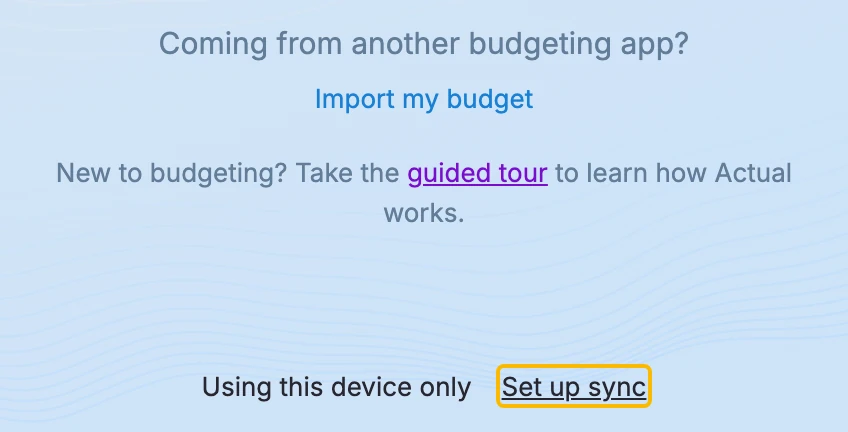
The server runs on localhost by default and mostly uses the default server configuration. You can modify the port if necessary.
Click Start to run the server.

Upon starting the server, you'll be prompted to create a password (if you haven't already). Sign in to complete the configuration.
Exposing your local server to the internet
To access your local server from mobile devices or other networks, you'll need to expose it to the internet. This requires setting up a Reverse Proxy to securely tunnel your local server connection.
For a practical walkthrough, check out the Ngrok guide. If you plan to use your mobile device regularly while the desktop app is running, consider configuring the reverse proxy to launch automatically with your computer.
When using a mobile device with Actual, installing the Web client as a Progressive Web App(PWA) is recommended so that it works when offline.
Trying the Nightly Builds
If you want to preview upcoming features before they reach an official release, nightly builds of the desktop app are also available.